
Assignment - Relational Databases and SQL Practice

As you go through this notebook, you will find a ??? in certain places. Your job is to replace the ??? with appropriate code or values, to ensure that the notebook runs properly end-to-end and your machine learning model is trained properly without errors.
Guidelines
- Make sure to run all the code cells in order. Otherwise, you may get errors like
NameErrorfor undefined variables. - Do not change variable names, delete cells, or disturb other existing code. It may cause problems during evaluation.
- In some cases, you may need to add some code cells or new statements before or after the line of code containing the ???.
This tutorial is an executable Jupyter notebook. Click the Open in Colab button at the top of this page to execute the code.
Jupyter Notebooks: This notebook is made of cells. Each cell can contain code written in Python or explanations in plain English. You can execute code cells and view the results instantly within the notebook. Jupyter is a powerful platform for experimentation and analysis. Don't be afraid to mess around with the code & break things - you'll learn a lot by encountering and fixing errors. You can use the "Edit > Clear All Outputs" and "Runtime > Restart Session" menu option to clear all outputs and start again from the top.
SQLite and Initial Setup
Relational databases generally have two components:
- Database Server/Engine: A software package that manages databases and runs in the background, listening for SQL queries from authorized users E.g. MySQL server, Microsoft SQL server, Postgres etc.
- Database Client: A command-line tool or graphical user interface (GUI) to connect to the database server and run SQL queries. E.g. MySQL workbench, PgAdmin etc.
The server and client can be on the same computer e.g. both on your laptop, or on different computers e.g. the database server can be running on the cloud and you can connect to it using a client installed on your computer.
Most database servers/engines are designed to operate on databases containing large amounts of data (e.g. 100s of GBs) and to handle a very high volume of queries (e.g. thousands of queries per second). They typically require powerful hardware i.e. multi-core CPUs and large amounts of RAM.
In this assignment, however, we'll use a lightweight database engine called SQLite, which is well-suited for tiny databases with small amounts of data. Despite being limited in its capabilities, it is the most widely used database engine in the world because it is used by smartphone apps, web browsers and desktop applications to store and manage data locally on the device.
Unlike other relational databases, SQLite doesn't have separate server and client packages. The sqlite3 command line tool is all your need to create and interact with SQLite databases. The databases themselves are stored as files with the extension .sqlite. You can perform CRUD operations on the database simply by passing SQL queries using sqlite3.
Here's a visual representation of how SQLite differs from other relational database servers (source):

Note that an .sqlite file is different from a .sql file, which contains commands for creating tables and inserting data. The .sqlite file is the actual database itself, where the data is stored in an binary tabular format for efficient querying.
In this assignment, we'll use the Chinook open source database. Let's begin by downloading the .sqlite file for the database containing all the required tables and the sample data.
from urllib.request import urlretrievedb_url = 'https://raw.githubusercontent.com/JovianHQ/notebooks/refs/heads/main/sql-and-business-intelligence/assignment-1-sql-querying-practice/Chinook_Sqlite.sqlite'urlretrieve(db_url, 'chinook.sqlite')('chinook.sqlite', <http.client.HTTPMessage at 0x7f83b6c26320>)To access and interact with the database using SQL queries directly within Jupyter, we'll use the ipython-sql library that provides the %%sql magic commands.
!pip install sqlalchemy ipython-sql --quiet --upgrade!pip install prettytable==2.5.0 -q%load_ext sqlWe can now connect to the database using a connection string.
%%sql

sqlite:///chinook.sqlite
We are now connected to the database and we can start writing SQL queries.
Database Structure and Tables
The Chinook database represents a digital media store, including tables for artists, albums, media tracks, invoices and customers. Here's the Entity Relationship Diagram (ERD) showing the structure of the Chinook database:

Let's begin by looking at the data from some of the tables in the database. We can write SQL queries directly within Jupyter code cells by including the magic command %%sql as the first line of the cell, indicating that contents of cell represent a SQL query.
%%sql

SELECT * FROM Artist LIMIT 5
sqlite:///chinook.db
* sqlite:///chinook.sqlite
Done.
%%sql

SELECT * FROM Album LIMIT 5
sqlite:///chinook.db
* sqlite:///chinook.sqlite
Done.
Selection and Ordering
QUESTION 1: Write a SQL query to sort the rows from the table
Trackin alphabetical order of Track name and display the first 10 rows. Replace the???in the cell below with your answer.
%%sql

???
# USED FOR EVALUATION. DON'T MODIFY/DELETE/MOVE THIS CELL!
ans1 = _(OPTIONAL) Write a SQL query to show the next 10 rows based on the above criteria.
(OPTIONAL) Write some SQL queries in the cells below to explore the first few rows of each table in the database.
Counting
QUESTION 2: Write a SQL query to calculate the total number of employees working at Chinook.
%%sql

???
# DON'T MODIFY THIS CELL! IT IS USED FOR EVALUATION.
ans2 = _(OPTIONAL) Write SQL queries to calculate the total number customers, total number of artists and total number of tracks in the database.
Aggregation and Grouping
QUESTION 3: Write a SQL query to show the top 10 albums with the highest number of tracks. The result should contain 2 columns: album ID and number of tracks in the album (name the column "Tracks"). Here are the first few rows of the result:

%%sql

???
# DON'T MODIFY THIS CELL! IT IS USED FOR EVALUATION.
ans3 = _(OPTIONAL) Improve the above query to also show the album name, artist ID and artist name. Enter the updated query in the empty cell below.
(OPTIONAL) List the top 10 albums with the highest number of tracks.
(OPTIONAL) List the top 10 artists with the highest number of tracks.
Functions and Joins
QUESTION 4: Show a list of the top 10 customer with the highest total spend in 2012. Calculate the total amount spent by each customer by adding the totals from all their invoices in the year 2012. Order the list by the invoice total (decreasing order). The result should contain the rows CustomerId, FirstName, LastName and TotalSpend. Here are the first few rows of the result:
Note: SQLite doesn't support the
YEARfunction. Instead usestrftime("%Y", Invoice.InvoiceDate)to extract the year from the columnInvoiceDateas a string. Learn more.Hint: First try to write down a step-by-step solution to the problem in plain English, and then try to convert it to a SQL query. Use the empty cells below to experiment with intermediate queries.

%%sql

???
# DON'T MODIFY OR MOVE THIS CELL! IT IS USED FOR EVALUATION.
ans4 = _ Joins and Arithmetic Operations
QUESTION 5: Write a SQL query to show the total number of albums and the average number of tracks per album for every artist. The result should include the artist ID, artist's name, total albums (name the column "Albums") and average tracks per album (name the column "TracksPerAlbum"). Sort the results in alphabetical order of artist name. Here are the first few rows of the result:

Hint: While dividing two integers, multiply one of the numbers by 1.0 to convert them into floats. Learn more.
%%sql

???
# DON'T MODIFY OR MOVE THIS CELL! IT IS USED FOR EVALUATION.
ans5 = _ (OPTIONAL) Write a SQL query to display the top 10 highest grossing tracks in 2012. The result should contain the track ID, track name, number of units sold, and the total revenue from the track in 2012. Hint: Use the InvoiceLine table.
Joining Multiple Tables
QUESTION 6: Show the following information for all the tracks by the Artist "Metallica": Track ID, Track Name, Album Title, Artist Name, Composer, Media Type, Genre and track length in milliseconds. Order the tracks in alphabetical order of album names.
Here are the first few rows of the expected result:

%%sql

???
# DON'T MODIFY OR MOVE THIS CELL! IT IS USED FOR EVALUATION.
ans6 = _(OPTIONAL) Modify the above query to show the length of each track in the "MM:SS" format i.e. "03:15". Enter the updated query in the empty cell below.
(OPTIONAL) Modify the above query to include the total revenue from the sales of each track. Enter the updated query in the empty cell below.
QUESTION 7: Create a new table
HallOfFameto track the list of artists who have been added into the Chinook Hall of Fame. The table should contain three columns:
HallOfFameId(int): Primary key with Auto IncrementArtistId(int): Foreign key (from the Artist table)YearAdded(int): The year the artist was added to the hall of fameOnce created, add 5 entries to the table (any artists of your choice).
%%sql

???
%%sql
??? Once the table is created and records have been inserted, you can view the list of artists in the hall of fame using the following query.
%%sql
SELECT * FROM HallOfFame JOIN Artist ON HallOfFame.ArtistId=Artist.ArtistId# DON'T MODIFY OR MOVE THIS CELL! IT IS USED FOR EVALUATION.
ans7 = _Inserting Data into Tables
QUESTION 8: Write SQL queries to insert the following records into the database:
- A new artist called "Linkin Park"
- Two new albums for the artist Linkin Park:
- Hybrid Theory
- Meteora
- Six new tracks (come up with sensible values for columns like Composer, Milliseconds etc.):
- Papercut (in the album Hybrid Theory)
- In The End (in the album Hybrid Theory)
- Crawling (in the album Hybrid Theory)
- Somewhere I Belong (in the album Meteora)
- Numb (in the album Meteora)
- Breaking the Habit (in the album Meteora)
Hint: You need not provide a value for the ID (primary key) columns while inserting these rows, because the ID columns are marked as AUTO INCREMENT and will automatically be assigned the next available numeric value.
Here's the query to insert a new artist:
%%sql
INSERT INTO Artist (Name) VALUES ("Linkin Park")Write the query to insert the new albums below:
%%sql

???Write the query to insert the new tracks below:
%%sql

???Make sure to insert exactly one copy of each of the above records. If you've inserted multiple copies, delete the extra rows before submitting.
If the records were inserted properly, you should be able to retrieve them back using the following queries.
%%sql

SELECT * FROM Artist WHERE Name="Linkin Park"
# DON'T MODIFY OR MOVE THIS CELL! IT IS USED FOR EVALUATION.
ans8a = _%%sql
SELECT * FROM Album JOIN Artist on Album.ArtistId=Artist.ArtistId WHERE Artist.Name="Linkin Park"# DON'T MODIFY OR MOVE THIS CELL! IT IS USED FOR EVALUATION.
ans8b = _%%sql
SELECT *
FROM Track JOIN Album
ON Track.AlbumId=Album.AlbumId
JOIN Artist
ON Album.ArtistId=Artist.ArtistId
WHERE Artist.Name="Linkin Park"# DON'T MODIFY OR MOVE THIS CELL! IT IS USED FOR EVALUATION.
ans8c = _Here are some more optional questions you can try solving: https://github.com/LucasMcL/15-sql_queries_02-chinook
Submission
To save your work, select "File" > "Save a Copy in Drive" on Google Colab. Once the copy is created, click the "Share" button and select "Anyone with the link" under the "General Access" section to make this notebook publicly accessible.
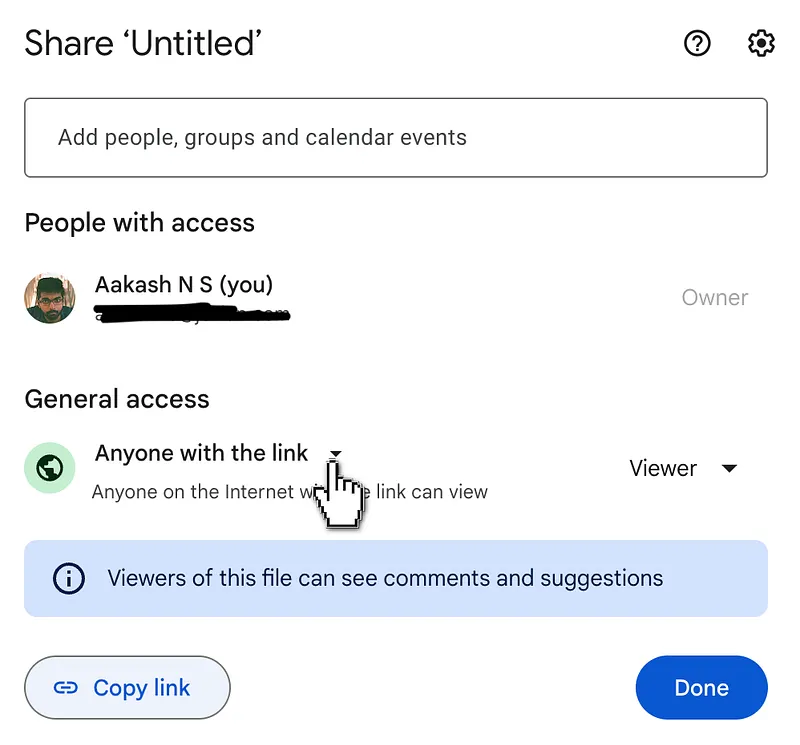
Then, copy the notebook link and submit it on the assignment page.