

A database is an organized collection of structured information, typically stored in the form of tables (rows & columns). Relational databases allow storing and retrieving different kinds of related information e.g. products, customers, and orders for an online shopping site. Structured Query Language or SQL (pronounced "sequel") is the most widely used language for interacting with relational databases, and is an essential skill for Data Science professionals.
The following topics are covered in this tutorial:
- Use cases and design of relational databases and SQL
- Setting up a database locally using MySQL server
- Creating, modifying and deleting databases and database tables
- SQL Data types and constraints (primary key, foreign key)
- CRUD (Create, Read, Update and Delete) operations on tables
- Exporting and importing data from relational databases
Problem Statement
We'll learn about relational database and SQL by working through the following problem (source):
QUESTION: Classic Models Inc. is a manufacturer of small scale models of cars, motorcycles, planes, ships trains etc. Products manufactured by Classic Models are sold in toy & gift stores around the world. Here's a small sample of their products (source):
Classic Models has offices around the world with dozens of employees. The customers of Classic Models are typically toy/gift stores. Each customer has a designated sales representative (an employee of Classic Models) they interact with. Customers typically place orders requesting several products in different quantities and pay for multiple orders at once via cheques.
Create a database to record and manage all of the above information. The database will also be used for day-to-day operations (adding customers, placing orders, recording payments, hiring employees etc.).

Relational Databases
There are many ways of storing data on a computer (text files, JSON files, CSV files, spreadsheets etc.). A relational database is a data storage system with the following properties:
- Data is stored in tables e.g.,
customers,products,offices,employees, etc.. - Each table has a set of columns. Each column is used to store a specific type of data.
- Data is stored as rows (also called records) within database tables.
- Tables support CRUD operations on rows: Create, Read, Update and Delete
- Table can be connected to other tables using relationship constraints (e.g. an employee works at a specific office).
- Information can be retrieved from the database using the Structured Query Language (SQL)
- Databases can be hosted locally (on your computer) or on the cloud, for distributed access.
Here's what a table in a relational database looks like:

Entity Relationship Diagrams
While setting up a relational database, it's common to create an "Entity Relationship Diagram" (ERD) to describe all the tables within the database and the relations between them. ERDs can be created using drawing tools like LucidChart. Here's the ERD for the Classic Models database:

Relational Database Software
There are several relational database software packages. Some are free and open source, while others are paid and proprietary. Here some popular relational database distributions:
- MySQL
- Postgres
- SQLite
- Microsoft SQL Server
- MariaDB
- Oracle
- IBM DB2
For this tutorial, we'll use MySQL, a free and open source relational database.
Structured Query Language
Structured Query Language or SQL is a programming language for interacting with relational databases. Unlike general purpose programming languages like Python, Java, C++ etc., SQL has a very limited syntax.

SQL Statements and Syntax
There are three types of SQL statements:
1. Data Definition Language(DDL): The Data Definition Language contains commands that are less frequently used. DDL commands modify the actual structure of a database, rather than the database’s contents. example:
- Generating a table
- Modifying a structure of a table (altering)
2. Data Control Language(DCL): The Data Control Language allows you to manipulate and manage user access rights on database objects. It consists of two commands:
- the GRANT command, used to add database permissions for a user,
- and the REVOKE command, used to remove existing permissions.
These two commands form the core of the relational database security model.
3. Data Manipulation Language (DML): Data Manipulation Language contains the subset of SQL commands used most frequently. It is used for searching, inserting, updating, and deleting data that we will see in this notebook.
Some quick notes on the SQL syntax:
- SQL is case insensitive. You can type statements in upper case, lowercase or a mixture of both
- Database names can be typed with or without backquotes i.e.
classicmodelsor`classicmodels` - SQL statement can span over multiple lines and must end with a semicolon
; - The statements in this tutorial can be executed on the MySQL command line or the workbench
The SQL syntax for each relational database software package is slightly different. Check the official documentation of your DB for details.
Setting up MySQL Server Locally
Install the following:
- MySQL server: https://dev.mysql.com/downloads/mysql/
- MySQL workbench: https://dev.mysql.com/downloads/workbench/
You'll be asked to set a root password while installing MySQL server.
Note: Make sure the password contains only numbers and alphabets. Avoid spaces/special characters in your password.
To interact with the MySQL server via the terminal use:
$ /usr/local/mysql/bin/mysql -u root -p
Depending on your operating system the path /usr/local/mysql/bin/mysql may be different. If you're unable to connect, make sure that the server is running and you're using the correct password.
Alternatively, the MySQL Workbench can be used to interact with a MySQL server (local or remote) via a GUI.

Working with Databases
You can find all the SQL statements used in this tutorial in this SQL file.
Let's set up a database for Classic Models. We'll explore SQL statements for listing, creating and deleting databases along the way.
Listing Databases
To display available databases, use the statement:
SHOW DATABASES;
Output:
+--------------------+
| Database           |
+--------------------+
| information_schema |
| mysql              |
| performance_schema |
| sys                |
+--------------------+
4 rows in set (0.01 sec)
Creating Databases
Databases can be created using the CREATE DATABASE statement.
CREATE DATABASE `classicmodels`;
Once created, the database should appear in the list of databases
SHOW DATABASES;
Output:
+--------------------+
| Database           |
+--------------------+
| classicmodels      |
| information_schema |
| mysql              |
| performance_schema |
| sys                |
+--------------------+
5 rows in set (0.00 sec)
We can also conditionally create a database if it doesn't already exist using:
CREATE DATABASE IF NOT EXISTS `classicmodels`;
Selecting a Database
A database must be selected before it can be used. This is done with the USE statement.
USE `classicmodels`;
All future statements like listing tables, creating tables, inserting or querying data will use the selected database.
Deleting a Database
To delete a database, use DROP DATABASE
DROP DATABASE `classicmodels`;
The database will no longer show up in the list of databases.
SHOW DATABASES;
Output:
+--------------------+
| Database           |
+--------------------+
| information_schema |
| mysql              |
| performance_schema |
| sys                |
+--------------------+
4 rows in set (0.01 sec)
EXERCISE: Create, use and delete some databases using the commands covered in this section. Can you figure out how to rename an existing database?
Let's recreate the database before continuing:
CREATE DATABASE IF NOT EXISTS `classicmodels`;
USE `classicmodels`;
Working with Tables
Let's create the tables for the Classic Models database according to the given Entity Relationship Diagram. We will also insert some data along the way.
- Tables in a database can be listed using the
SHOW TABLESstatement - Tables are created using the
CREATE TABLEstatement - Tables are deleted using the
DROP TABLEstatement - You can view the structure of a table using the
DESCRIBEstatement - Data can be inserted into a table using the
INSERT INTOstatement
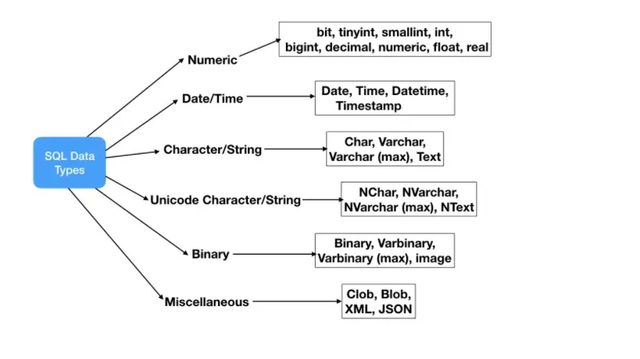
While creating tables, we specify a list of columns and the data type for each column.
CREATE TABLE table_name (
    column1 datatype,
    column2 datatype,
    column3 datatype,
   ....
);
Offices

The offices table can be created as follows:
DROP TABLE IF EXISTS `offices`;

CREATE TABLE `offices` (
  `officeCode` varchar(10) NOT NULL,
  `city` varchar(50) NOT NULL,
  `phone` varchar(50) NOT NULL,
  `addressLine1` varchar(50) NOT NULL,
  `addressLine2` varchar(50),
  `state` varchar(50),
  `country` varchar(50) NOT NULL,
  `postalCode` varchar(15) NOT NULL,
  `territory` varchar(10) NOT NULL,
  PRIMARY KEY (`officeCode`)
);
Primary Key: Note that we've included a PRIMARY KEY constraint on the officeCode column.
-
The PRIMARY KEY constraint uniquely identifies each record in a table.
-
Primary keys must contain UNIQUE values, and cannot contain NULL values.
-
A table can have only ONE primary key constraint; and in the table, this primary key can consist of single or multiple columns (fields).
We can check that the database is created using SHOW TABLES; and view information about it using DESCRIBE `offices`;
Inserting Data: We can insert some rows into the table using the INSERT INTO statement.
INSERT INTO `offices`

(`officeCode`,`city`,`phone`,`addressLine1`,`addressLine2`,`state`,`country`,`postalCode`,`territory`) VALUES

('1','San Francisco','+1 650 219 4782','100 Market Street','Suite 300','CA','USA','94080','NA'),

('2','Boston','+1 215 837 0825','1550 Court Place','Suite 102','MA','USA','02107','NA'),

('3','NYC','+1 212 555 3000','523 East 53rd Street','apt. 5A','NY','USA','10022','NA'),

('4','Paris','+33 14 723 4404','43 Rue Jouffroy D\'abbans',NULL,NULL,'France','75017','EMEA'),

('5','Tokyo','+81 33 224 5000','4-1 Kioicho',NULL,'Chiyoda-Ku','Japan','102-8578','Japan'),

('6','Sydney','+61 2 9264 2451','5-11 Wentworth Avenue','Floor #2',NULL,'Australia','NSW 2010','APAC'),

('7','London','+44 20 7877 2041','25 Old Broad Street','Level 7',NULL,'UK','EC2N 1HN','EMEA');
The INSERT statement has the following general syntax:
INSERT INTO table_name(column_1, column_2,...) VALUES (value1_1,value1_2,...), (value2_1,value2_2,...), ...;
If you're inserting values for all the columns, you can skip the column names:
INSERT INTO table_name VALUES (value1_1, value1_2, ...), (value2_1,value2_2,...), ...;
Viewing Data: The simplest way to view data from the table is using the SELECT statement. It has the following syntax:
SELECT column1, column2, ... FROM table_name;
You can also view data from all columns using
SELECT * FROM `offices`;
EXERCISES:
- Add some more entires into the
officestable, using just the required (NOT NULL) columns.- Explore what happens if you don't provide a value for a column marked as
not null.- Try adding an entry with a primary key matching the an existing entry.
- Retrieve and display just the city and phone number information for each office.
Employees

The employees table can be created using the following code:
DROP TABLE IF EXISTS `employees`;

CREATE TABLE `employees` (
  `employeeNumber` int(11) NOT NULL,
  `lastName` varchar(50) NOT NULL,
  `firstName` varchar(50) NOT NULL,
  `extension` varchar(10) NOT NULL,
  `email` varchar(100) NOT NULL,
  `officeCode` varchar(10) NOT NULL,
  `reportsTo` int(11) DEFAULT NULL,
  `jobTitle` varchar(50) NOT NULL,
  PRIMARY KEY (`employeeNumber`),
  FOREIGN KEY (`reportsTo`) REFERENCES `employees` (`employeeNumber`),
  FOREIGN KEY (`officeCode`) REFERENCES `offices` (`officeCode`)
);
Foreign Keys: A FOREIGN KEY is a field (or collection of fields) in one table, that refers to the PRIMARY KEY in another table.
-
We've added a foreign key constraint for the the
officeCodecolumn, connecting it with theofficestable. This ensure that we can't set an employee'sofficeCodeto an invalid value. -
A foreign key constraint can also be established between a table and itself, as done in the case of the
reportsTocolumn.
Inserting Data: Let's insert some data into the table:
INSERT INTO `employees` VALUES
(1002,'Murphy','Diane','x5800','dmurphy@classicmodelcars.com','1',NULL,'President'),
(1056,'Patterson','Mary','x4611','mpatterso@classicmodelcars.com','1',1002,'VP Sales'),
(1076,'Firrelli','Jeff','x9273','jfirrelli@classicmodelcars.com','1',1002,'VP Marketing'),
(1088,'Patterson','William','x4871','wpatterson@classicmodelcars.com','6',1056,'Sales Manager (APAC)'),
(1102,'Bondur','Gerard','x5408','gbondur@classicmodelcars.com','4',1056,'Sale Manager (EMEA)'),
(1143,'Bow','Anthony','x5428','abow@classicmodelcars.com','1',1056,'Sales Manager (NA)'),
(1165,'Jennings','Leslie','x3291','ljennings@classicmodelcars.com','1',1143,'Sales Rep'),
(1166,'Thompson','Leslie','x4065','lthompson@classicmodelcars.com','1',1143,'Sales Rep'),
(1188,'Firrelli','Julie','x2173','jfirrelli@classicmodelcars.com','2',1143,'Sales Rep'),
(1216,'Patterson','Steve','x4334','spatterson@classicmodelcars.com','2',1143,'Sales Rep'),
(1286,'Tseng','Foon Yue','x2248','ftseng@classicmodelcars.com','3',1143,'Sales Rep'),
(1323,'Vanauf','George','x4102','gvanauf@classicmodelcars.com','3',1143,'Sales Rep'),
(1337,'Bondur','Loui','x6493','lbondur@classicmodelcars.com','4',1102,'Sales Rep'),
(1370,'Hernandez','Gerard','x2028','ghernande@classicmodelcars.com','4',1102,'Sales Rep'),
(1401,'Castillo','Pamela','x2759','pcastillo@classicmodelcars.com','4',1102,'Sales Rep'),
(1501,'Bott','Larry','x2311','lbott@classicmodelcars.com','7',1102,'Sales Rep'),
(1504,'Jones','Barry','x102','bjones@classicmodelcars.com','7',1102,'Sales Rep'),
(1611,'Fixter','Andy','x101','afixter@classicmodelcars.com','6',1088,'Sales Rep'),
(1612,'Marsh','Peter','x102','pmarsh@classicmodelcars.com','6',1088,'Sales Rep'),
(1619,'King','Tom','x103','tking@classicmodelcars.com','6',1088,'Sales Rep'),
(1621,'Nishi','Mami','x101','mnishi@classicmodelcars.com','5',1056,'Sales Rep'),
(1625,'Kato','Yoshimi','x102','ykato@classicmodelcars.com','5',1621,'Sales Rep'),
(1702,'Gerard','Martin','x2312','mgerard@classicmodelcars.com','4',1102,'Sales Rep');
EXERCISES:
- Try inserting an entry into
employeeswith an invalid value forofficeCode.- Try inserting an entry into
employeeswith an invalid value forreportsTo.- Create a new office location and add some employees for the new location.
Customers

The customers table can be created using the following code:
CREATE TABLE IF NOT EXISTS `customers` (
  `customerNumber` INT(11) NOT NULL,
  `customerName` VARCHAR(50) NOT NULL,
  `contactLastName` VARCHAR(50) NOT NULL,
  `contactFirstName` VARCHAR(50) NOT NULL,
  `phone` VARCHAR(50) NOT NULL,
  `addressLine1` VARCHAR(50) NOT NULL,
  `addressLine2` VARCHAR(50) NULL DEFAULT NULL,
  `city` VARCHAR(50) NOT NULL,
  `state` VARCHAR(50) NULL DEFAULT NULL,
  `postalCode` VARCHAR(15) NULL DEFAULT NULL,
  `country` VARCHAR(50) NOT NULL,
  `salesRepEmployeeNumber` INT(11) NULL,
  `creditLimit` DOUBLE NULL DEFAULT NULL,
  `customerLocation` POINT NOT NULL,
  PRIMARY KEY (`customerNumber`),
  FOREIGN KEY (`salesRepEmployeeNumber`) REFERENCES `employees` (`employeeNumber`));
EXERCISE: Add some customers to the database using the data from this SQL file: https://raw.githubusercontent.com/harsha547/ClassicModels-Database-Queries/master/database.sql
Querying with WHERE
We can add a WHERE clause to a SELECT statement to select just the rows satisfying the given clause. Here's an example:
SELECT * FROM `employees` WHERE `jobTitle`="Sales Rep";
Note that values with spaces must be placed within quotes e.g. "Sales Rep".
The WHERE clause supports the following operators:
=><>=<=<>or!=BETWEENLIKEIN
Expressions within a WHERE clause can be combined using AND and OR.
SELECT column1, column2, ...
FROM table_name
WHERE condition1 AND condition2 AND condition3 ...;
An expression within a WHERE clause can be negated using NOT.
SELECT column1, column2, ...
FROM table_name
WHERE NOT condition;
You can use a WHERE clause with SELECT, UPDATE, and DELETE statements.
EXERCISES:
- List the customers in the United States with a credit limit higher than \$1000.
- List the employee codes for sales representatives of customers in Spain, France and Italy. Make another query to list the names and email addresses of those employees.
- Change the job title "Sales Rep" to "Sales Representative"
- Delete the entries for Sales Representatives working in London.
- Show a list of employees who are not sales representatives
- Show a list of customers with "Toys" in their name
Product Lines and Products

The Product Lines table can be created as follows:
DROP TABLE IF EXISTS `productlines`;

CREATE TABLE `productlines` (
  `productLine` varchar(50) NOT NULL,
  `textDescription` varchar(4000) DEFAULT NULL,
  `htmlDescription` mediumtext,
  `image` mediumblob,
  PRIMARY KEY (`productLine`)
);
The Products table can be created as follows:
DROP TABLE IF EXISTS `products`;

CREATE TABLE `products` (
  `productCode` varchar(15) NOT NULL,
  `productName` varchar(70) NOT NULL,
  `productLine` varchar(50) NOT NULL,
  `productScale` varchar(10) NOT NULL,
  `productVendor` varchar(50) NOT NULL,
  `productDescription` text NOT NULL,
  `quantityInStock` smallint(6) NOT NULL,
  `buyPrice` decimal(10,2) NOT NULL,
  `MSRP` decimal(10,2) NOT NULL,
  PRIMARY KEY (`productCode`),
  CONSTRAINT `products_ibfk_1` FOREIGN KEY (`productLine`) REFERENCES `productlines` (`productLine`)
);
EXERCISE: Add some product lines and products from this SQL file: https://raw.githubusercontent.com/harsha547/ClassicModels-Database-Queries/master/database.sql
ORDER BY and LIMIT
The results of a Select statement can be ordered using the ORDER BY clause:
SELECT column1, column2, ...
FROM table_name
ORDER BY column1, column2, ... ASC|DESC;
To limit the number of results, use the LIMIT clause:
SELECT column_name(s)
FROM table_name
WHERE condition
LIMIT number;
EXERCISES:
- List the 5 most expensive products from the "Planes" product line
- Identify the products that are about to run out of stock (quantity in stock < 100)
- List 10 products in the "Motorcycles" category with the lowest buy price and more than 1000 units in stock
Orders, Order Details and Payments


EXERCISE: Create the Orders, Order Details and Payments tables using the
CREATE TABLEstatement. Include proper primary key and foreign key constraints. Add some data into each of the tables (sample data).
Modifying Table Structure
The structure of the table can be modified using ALTER TABLE
Adding a new column to a table:
ALTER TABLE table_name ADD column_name datatype;
Removing a column from a table:
ALTER TABLE table_name DROP COLUMN column_name;
Changing the data type of a column:
ALTER TABLE table_name MODIFY COLUMN column_name datatype;
Renaming a column:
ALTER TABLE table_name RENAME COLUMN old_column_name TO new_column_name;
EXERCISE: Add, remove and modify one column in each of the tables created above. What happens when you rename or remove a column that is a primary key?
Importing and Exporting SQL
Multiple SQL commands can be placed into a .sql file (like this one) and can be executed together using the msql console or workbench.
$ /usr/local/mysql/bin/mysql -u root -p < database.sql
This is a great way to import data into a SQL database.
To export a database as a SQL file, use the mysqldump utility:
$ /usr/local/mysql/mysqldump --add-drop-table -u root dbname -p > dbname.sql
EXERCISES: Perform the following operations, in the given order:
- Download this SQL file and import data from your local installation of the MySQL server.
- Export the
classicmodelsdatabase into a SQL file. Compare it with the originally imported SQL file.- Drop the
classicmodelsdatabase and recreate it using the exported SQL file.
SQL Challenges
Set up the Classic Models dataset locally with example data using the SQL script: https://raw.githubusercontent.com/JovianHQ/notebooks/refs/heads/main/sql-and-business-intelligence/ClassicModels.sql
- Prepare a list of offices sorted by country, state, city.
???
- How many employees are there in the company?
???
- What is the total of payments received?
???
- List the product lines that contain 'Cars'.
???
- Report total payments for October 28, 2004.
???
- Report those payments greater than \$100,000.
???
- List the products in each product line.
???
- How many products in each product line?
???
- What is the minimum payment received?
???
- List all payments greater than twice the average payment.
???
- What is the average percentage markup of the MSRP on buyPrice?
???
- How many distinct products does ClassicModels sell?
???
- Report the name and city of customers who don't have sales representatives?
???
- What are the names of executives with VP or Manager in their title? Use the CONCAT function to combine the employee's first name and last name into a single field for reporting.
???
- Which orders have a value greater than $5,000?
???
Summary and Further Reading
The following topics were covered in this tutorial:
- Use cases and design of relational databases and SQL
- Installation of MySQL and setting up a database locally
- Creating, modifying and deleting databases and database tables
- SQL Data types and constraints (primary key, foreign key)
- CRUD (Create, Read, Update and Delete) operations on tables
- Exporting and importing data from relational databases
Check out the following resources to learn more:
- ClassicModels Database: https://www.mysqltutorial.org/mysql-sample-database.aspx
- MySQL server installation - https://dev.mysql.com/downloads/mysql/
- MySQL workbench installation - https://dev.mysql.com/downloads/workbench/
- MySQL documentation - https://dev.mysql.com/doc/
- More on SQL datatypes - https://www.journaldev.com/16774/sql-data-types
- More on MySQL UPDATE statement - https://www.w3schools.com/mysql/mysql_update.asp
- More on MySQL DELETE statement - https://www.w3schools.com/mysql/mysql_delete.asp
- SQL Challenges - https://web.archive.org/web/20210512173942/https://www.richardtwatson.com/dm6e/Reader/ClassicModels.html
- SQL Challenges solutions - https://github.com/harsha547/ClassicModels-Database-Queries/tree/master/challenges
In the next tutorial, we'll cover the following topics:
- Using functions for advanced querying on strings dates, timestamps etc.
- Aggregating data using COUNT, AVERAGE, SUM, MIN, MAX etc.
- Using joins to combine and query data from multiple tables at once
- Improving query performance with keys, indexes and transactions
- Connecting to SQL database from Python for querying and visualization in Jupyter
Revision Questions
- What are Relational databases?
- What are the properties of relational databases?
- What is an ERD?
- What are few relational databases software packages?
- What is SQL?
- What are SQL statements?
- How to list all the available databases?
- What is the syntax to create a new database?
- How to select a database to in order to use it?
- What is the syntax to delete a database?
- What is the syntax to rename an existing database?
- What is the syntax to check if a database exists or not?
- How to view structure of a table?
- What are the different SQL data types?
- What is a
PRIMARY KEY? What are the properties of aPRIMARY KEY? - What is a
FOREIGN KEY? - What is
REFERENCESclause in SQL? - What is a
CONSTRAINTin SQL? - How to view data in a table?
- How to add new rows of data in SQL?
- What operators does
WHEREclause support? - How to combine expressions within a
WHEREclause? - What does
ORDERY BYclause do in SQL? - What does
LIMITclause do SQL? - How to modify a table structure?
- How to change data type of a column?
- How to add new column to the table?
- How to rename a column in SQL?
- How to import data into SQL database?
- How to export data from SQL database?
EXERCISE: Create, use and delete some databases using the commands covered in this section. Can you figure out how to rename an existing database?
Create
CREATE DATABASE `jovian_data`;
SHOW DATABASES;
Output:
+--------------------+
| Database           |
+--------------------+
| classicmodels      |
| information_schema
| jovian_data
| mysql              |
| performance_schema |
| sys                |
+--------------------+
6 rows in set (0.00 sec)
Use
USE `jovian_data`
Delete
DROP DATABASE `jovian_data`
To rename the existing database - you can create a new database exactly as the old database with a different name and then drop the old database. Renaming database query has been disabled in new versions of MySQL due to security risks.
EXERCISES:
- Add some more entires into the
officestable, using just the required (NOT NULL) columns.- Explore what happens if you don't provide a value for a column marked as
not null.- Try adding an entry with a primary key matching the an existing entry.
- Retrieve and display just the city and phone number information for each office.
- Add some more entires into the
officestable, using just the required (NOT NULL) columns.
DESCRIBE offices;
INSERT INTO offices (officeCode, city, phone, addressline1, country, postalCode,territory,officelocation)
VALUES ('jovian', 'Bengaluru', '+919744324587', '34/7, Koramangal', 'India', '560010','South',POINT(1,2));
- Explore what happens if you don't provide a value for a column marked as
not null.
INSERT INTO offices (city,phone,addressline1,country,postalcode,territory)
VALUES('Hyderabad','+919733345588','32/4, Oldcity', 'India','432201','East');
Error Code: 1364. Field 'officeCode' doesn't have a default value
- Try adding an entry with a primary key matching the an existing entry.
INSERT INTO offices (officeCode, city, phone, addressline1, country, postalCode,territory,officelocation)
VALUES ('jovian', 'Chennai', '+919744323487', '3/7, Beach', 'India', '560220','South',POINT(3,2));
Error Code: 1062. Duplicate entry 'jovian' for key 'offices.PRIMARY'
- Retrieve and display just the city and phone number information for each office.
SELECT city, phone FROM offices;
EXERCISES:
- Try inserting an entry into
employeeswith an invalid value forofficeCode.- Try inserting an entry into
employeeswith an invalid value forreportsTo.- Create a new office location and add some employees for the new location.
- Try inserting an entry into
employeeswith an invalid value forofficeCode.
INSERT INTO employees (employeeNumber, lastname, firstname, extension, email, reportsTo,jobTitle,officeCode)
VALUES (2, 'Bruce', 'Wayne', 'jovian.ai', 'bruce@jovian.ai', 1002,'CEO',12012);
Error Code: 1452. Cannot add or update a child row: a foreign key constraint fails (`classicmodels`.`employees`, CONSTRAINT `fk_Employees_Offices` FOREIGN KEY (`officeCode`) REFERENCES `offices` (`officeCode`))
- Try inserting an entry into
employeeswith an invalid value forreportsTo.
INSERT INTO employees (employeeNumber, lastname, firstname, extension, email, reportsTo,jobTitle,officeCode)
VALUES (2, 'Bruce', 'Wayne', 'jovian.ai', 'bruce@jovian.ai', 1234,'CEO',123);
-- Error Code: 1452. Cannot add or update a child row: a foreign key constraint fails (`classicmodels`.`employees`, CONSTRAINT `fk_Employees_Employees` FOREIGN KEY (`reportsTo`) REFERENCES `employees` (`employeeNumber`))
- Create a new office location and add some employees for the new location.
INSERT INTO offices (officeCode, city, phone, addressline1, country, postalCode,territory,officelocation)
VALUES (197, 'Helsinki', '+44 20 7000 7000', 'Regents Park, Finland NW1 4SA', 'Finland', '020','North',POINT(51.5,0.12));
INSERT INTO employees (employeeNumber, lastname, firstname, extension, email, reportsTo,jobTitle,officeCode)
VALUES (19, 'Ray', 'Palmer', 'jovian.ai', 'ray@jovian.ai', 1002,'Engineer',197);


INSERT INTO employees (employeeNumber, lastname, firstname, extension, email, reportsTo,jobTitle,officeCode)
VALUES (20, 'Alfred', 'Pennyworth', 'jovian.ai', 'alfred@jovian.ai', 1,'Logistics Head',197);
EXERCISES:
- List the customers in the United States with a credit limit higher than \$1000.
- List the employee codes for sales representatives of customers in Spain, France and Italy. Make another query to list the names and email addresses of those employees.
- Change the job title "Sales Rep" to "Sales Representative"
- Delete the entries for Sales Representatives working in London.
- Show a list of employees who are not sales representatives
- Show a list of customers with "Toys" in their name
- List the customers in the United States with a credit limit higher than \$1000.
SELECT * FROM customers WHERE country='USA' AND creditlimit>1000;
- List the employee codes for sales representatives of customers in Spain, France and Italy. Make another query to list the names and email addresses of those employees.
SELECT DISTINCT salesRepEmployeeNumber FROM customers WHERE country='Spain' OR country='Italy' OR country='France';


SELECT firstname, email FROM employees WHERE employeenumber IN (1370,1337,1702,1401);
- Change the job title "Sales Rep" to "Sales Representative"
SET SQL_SAFE_UPDATES = 0;

UPDATE employees SET jobTitle = 'Sales Representative' WHERE jobTitle = 'Sales Rep';

SET SQL_SAFE_UPDATES = 1;
- Delete the entries for Sales Representatives working in London.
SET foreign_key_checks=0;

DELETE FROM employees WHERE jobTitle = 'Sales Representative' AND officeCode=7;

SET foreign_key_checks=1;
- Show a list of employees who are not sales representatives
SELECT * FROM employees WHERE jobTitle != 'Sales Representative' ;
- Show a list of customers with "Toys" in their name
SELECT * FROM customers WHERE customername LIKE '%Toys%';
EXERCISES:
- List the 5 most expensive products from the "Planes" product line
- Identify the products that are about to run out of stock (quantity in stock < 100)
- List 10 products in the "Motorcycles" category with the lowest buy price and more than 1000 units in stock
- List the 5 most expensive products from the "Planes" product line
SELECT productname FROM products where productline = 'Planes' ORDER BY buyprice DESC LIMIT 5;
- Identify the products that are about to run out of stock (quantity in stock < 100)
SELECT productname,quantityinstock FROM products WHERE quantityinstock<100;
- List 10 products in the "Motorcycles" category with the lowest buy price and more than 1000 units in stock
SELECT productname,buyprice,quantityinstock,productline FROM products WHERE productline='Motorcycles' AND quantityinstock>1000 ORDER BY buyprice LIMIT 10;
EXERCISE: Add, remove and modify one column in each of the tables created above. What happens when you rename or remove a column that is a primary key?
Rename
ALTER TABLE customers CHANGE customernumber custnumber CHAR(50);
Error Code: 3780. Referencing column 'customerNumber' and referenced column 'custnumber' in foreign key constraint 'fk_Orders_Customers' are incompatible.
Remove
ALTER TABLE customers DROP COLUMN customernumber;
Error Code: 1829. Cannot drop column 'customerNumber': needed in a foreign key constraint 'fk_Orders_Customers' of table 'Orders'